3 Types SEO Plugins for WordPress

1. Plugins for Configuring Google Search Console and Google Analytics
Header Footer Code Manager
Function: Used to add code in the header and footer
Basic Configuration Methods: Choose “Custom” for Snippet Name, “HTML” for Snippet Type, “Site Wide” for Site Display, and “Header” for Location. Place the Google Search Console and Google Analytics code in the Code field , then ,click “Save”.
 2. Website Optimization Plugins
Smart SEO Tool
Function: Used to configure webpage TDK, sitemaps, robots, etc.
TDK refers to the Title, Description, and Keywords of a page, which are displayed in Google’s search results. These texts need to align closely with the content of the page, helping to increase clicks from targeted users, thus improving the conversion rate.
Sitemap.xml refers to a sitemap, where users can set which website links to display based on their needs. Usually, the homepage, product catalog, product details, blog directory, blog details, and main menu bar page are included in the sitemap. Other elements like author’s links, unnecessary pages, and template links are excluded.
“Robots.txt” refers to the web crawler rules. When a crawler enters a website, it first reads the Robots.txt file. “User-agent” refers to allowing all crawlers to crawl. “Disallow” refers to blocked links. “Allow” refers to allowed links. Setting a Robots.txt file helps to allocate crawling quotas effectively, ensuring crawlers focus on main pages and don’t waste quotas on secondary pages. Generally, it blocks backend URLs, author links, and other non-canonical links.
In short, you can think of a website as a house, Robots.txt as the rules for visitors, the site map as the location of the rooms in the house, and web crawlers as visitors. Web crawlers can use the map to visit all the rooms, but some web crawlers will not follow the visitor rules.
Basic Configuration Methods: Activate the TDK optimization button in the general tab to fill in the TDK at the bottom of category and page pages. Then Click “Sitemap” to enable automatic sitemap updates and click other miscellaneous options to configure the robots.
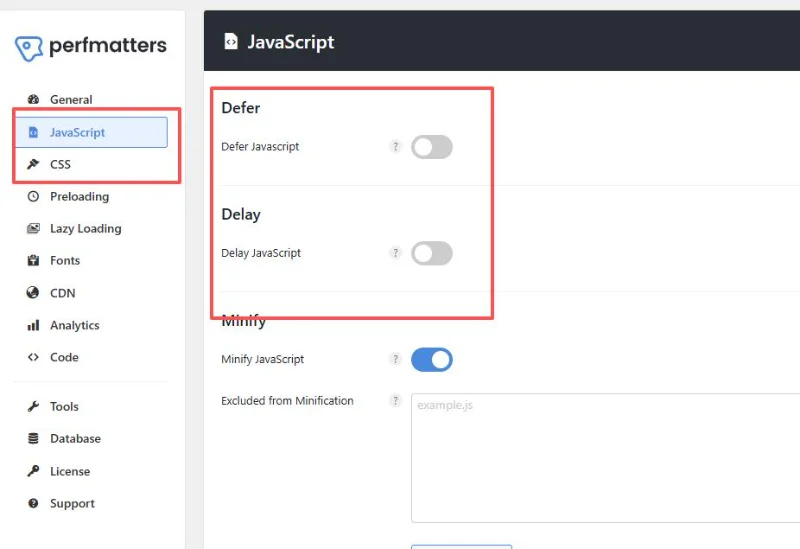
Perfmatters
Function: Used for web page code optimization
Basic Configuration Methods: Upon activation, the plugin removes unnecessary code from the header by default. Choose whether to apply optimizations like Defer and Minify to JS and CSS files, and whether to enable lazy for images.
Usually, CSS and JS files are compressed as they can slow down page load speeds. JS files and images are often deferred or lazily loaded, meaning they are loaded after the HTML content, which improves overall page load time. You can also use other plugins to combine CSS and JS files, but be aware that this may cause style issues, so you need to back up the site before merging them.
 LiteSpeed Cache
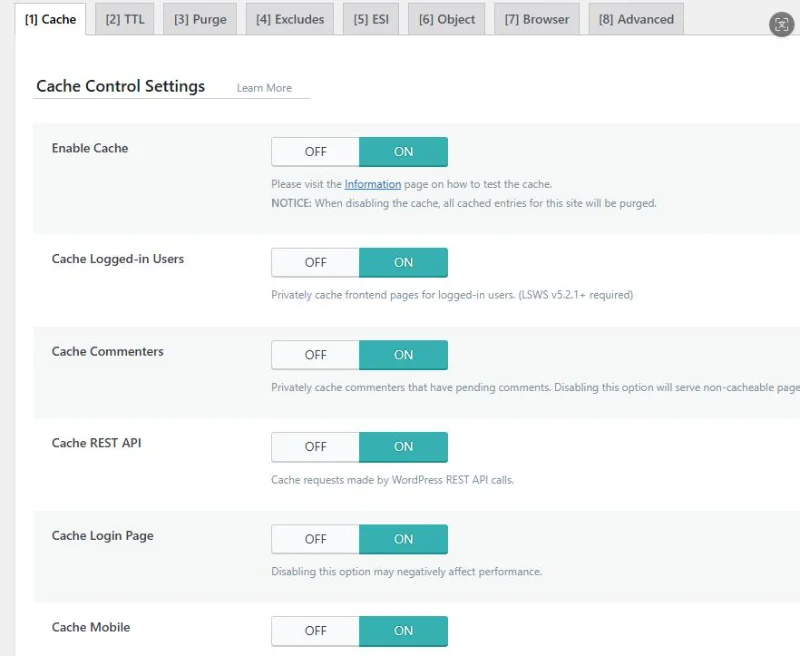
Function: Enables caching for the website
Page caching refers to converting dynamic pages into static pages. The advantage is faster page load speeds, as users can see the page content without querying the database. The disadvantage is that the page may not update immediately. This is suitable for pages that don’t frequently call data, such as related product links on a product detail page, which don’t change often.
Basic Configuration Methods: Page caching is automatically enabled upon activation. You can customize the settings in the Cache section.
 3. Plugins for Handling Inquiries
Contact Form 7
Function: Used for creating contact forms
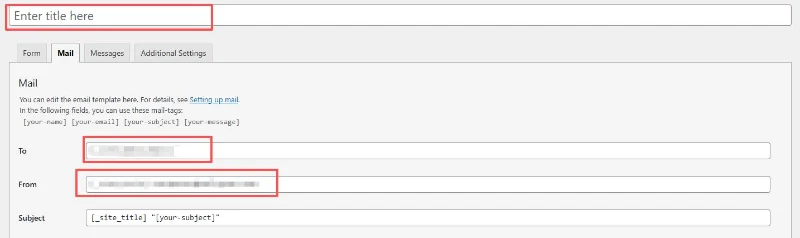
Basic Configuration Methods: Click “Add Contact Form” under Contact to create a contact form. Set the form name in “Enter title here” and configure the sender and recipient in the “Mail” section, then click “save” on the right. You can place the generated shortcode in the corresponding position on the page editor.
 WP Mail SMTP
Function: Used to configure the email sender
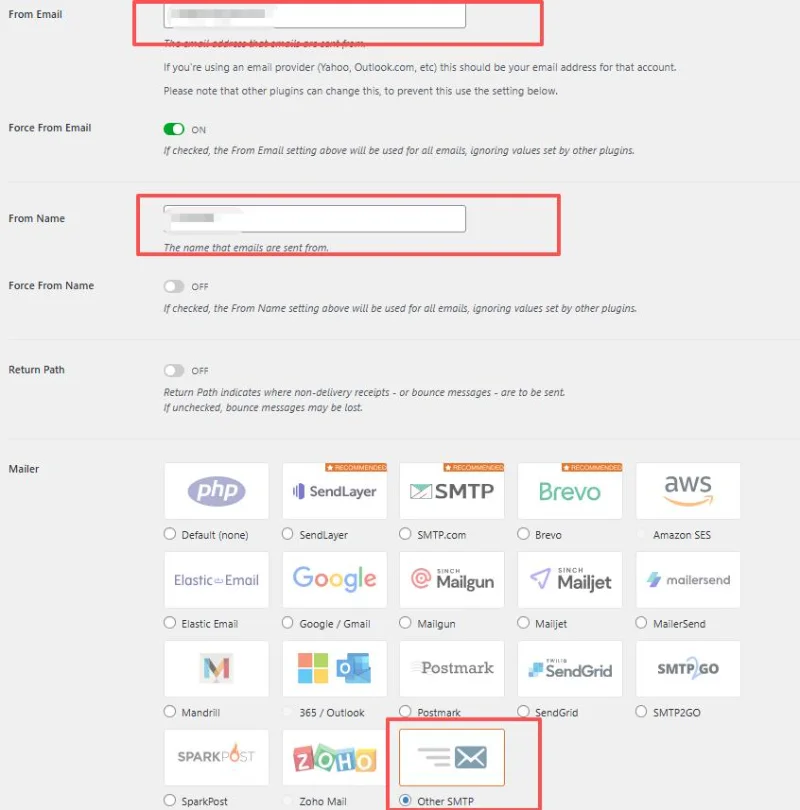
Basic Configuration Methods: Go to the Settings page of WP Mail SMTP, enter the sender’s email in “From Email”, and choose the appropriate Mailer according to the email service provider (e.g., choose “Other SMTP” here).
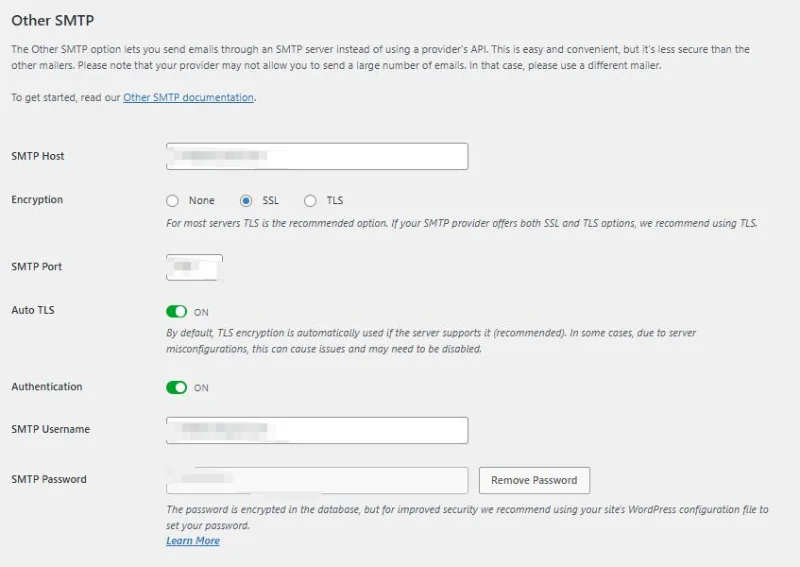
Fill in the SMTP Host and Port for email service provider, and enable SMTP and POP services in email account. After obtaining the client password, enter the email and client password.
 Flamingo
Function: Used to store user-submitted form data from Contact Form 7
Basic Configuration Methods: Enable the plugin, and it will run automatically.
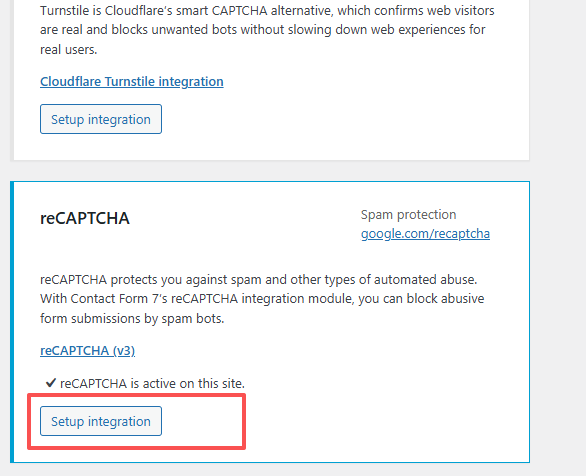
reCAPTCHA
Function: Blocks spam
Google reCAPTCHA V3 rates website users on a scale of 0.1 to 1.0. The closer a score is to 0.1, the more robotic the user appears, while the closer a score is to 1.0, the more human the user appears.
Basic Configuration Methods: Go to the Integration section under Contact, find reCAPTCHA, and click “Setup”. Use Google account to visit https://www.google.com/recaptcha/admin/create, choose reCAPTCHA V3, fill in the required information to obtain the secret key, and enter it in the corresponding fields. Set the score to 0.5 to filter most spam emails.